


Every meeting feature below is available on both the web app and the mobile app. Where the interface differs, steps are given for each. All multilingual AI features are included in every plan and run within your plan’s AI hours.
What is real-time voice translation?
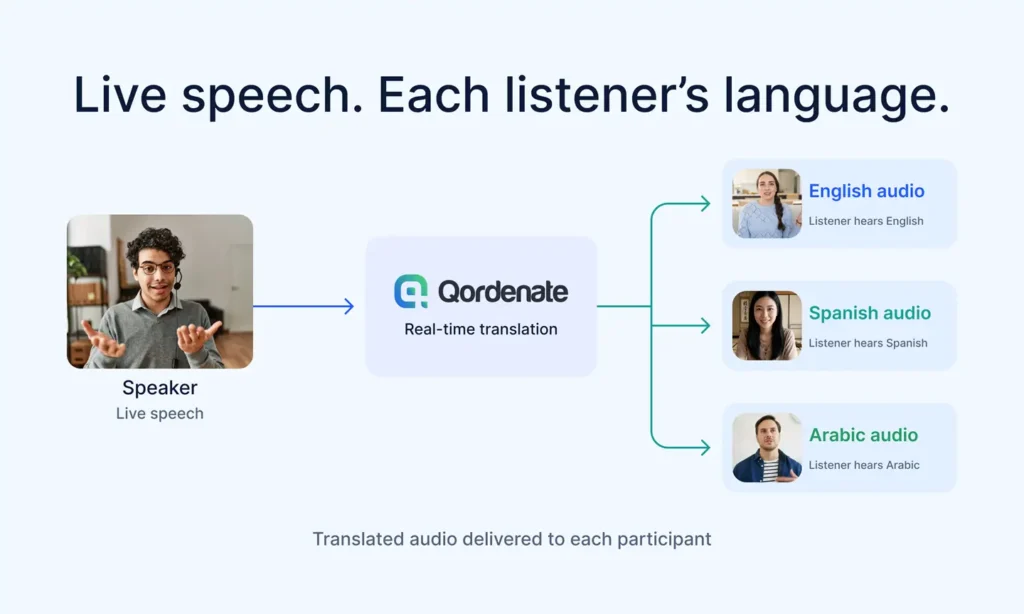
Real-time voice translation is Qordenate’s core meeting feature. It listens to each participant as they speak, and delivers translated audio to every other participant in their own preferred language, with no manual input during the meeting. and delivers translated audio to every other participant in their own preferred language, with no manual input during the meeting.
A speaker in Arabic and a listener who has chosen French hear each other naturally, in real time. Translation is genuine audio-to-audio, not captions or text-to-speech generated after the speaker has finished, and it runs in both directions inside the same meeting.
Translated audio works over speakers, headphones and earphones, so participants can listen privately in a shared space.
On Pro, Business, Scale and Enterprise, the host’s plan covers translation for everyone in the meeting. See Language Pass and who pays for translation.
Meeting languages
The host chooses which languages a meeting runs in, on the pre-meeting screen under Participants’ Languages. Each participant hears and reads the meeting in one of those languages.
| Plan | Languages per meeting |
|---|---|
| Basic | 2 |
| Pro | 3 |
| Business | 6 |
| Scale | 9 |
| Language Pass | 9 |
| Enterprise | Custom |
Changing language during a meeting. Host and participants can switch their preferred language at any time without leaving, using the Languages control in the bottom-right of the meeting control bar.
What is voice cloning?
Voice cloning means your translated speech is delivered in a voice that sounds like you, rather than a generic AI voice. It activates automatically when Live Translation is enabled, there is no separate toggle and no setup during the meeting.
How voice-to-voice translation works in a live meeting
- The host selects the meeting’s languages before starting
- Each participant joins in their preferred language from that set
- Each participant enables the Live Translation control
- Participants speak normally
- Qordenate detects speech automatically
- The AI converts speech into translated voice output
- Other participants hear the conversation in their chosen language
- Voice cloning applies automatically once real-time translation is enabled
Time spent with these features active draws on AI hours. See Understanding AI hours.
What is Universal Captions?
Universal Captions displays a live on-screen transcription of what is being said, translated into each participant’s preferred language. Captions run alongside translated audio, which helps in noisy environments, supports accessibility, and suits anyone who follows a conversation better by reading.
Captions are controlled by the host. Participants can enable their own captions once the host has granted access.
How to Turn Captions On and Off
On the web app
- 1
Select the CC icon in the bottom control bar
- 2
If the host has enabled captions, selecting the icon is all that is needed
- 3
Select the icon again to turn your captions off
On the mobile app
- 1
Tap the CC icon in the meeting controls
- 2
If the host has enabled captions, tapping the icon is all that is needed
- 3
Tap the icon again to turn your captions off
On a phone screen, captions occupy part of the video area.
What is VoiceBridge?
VoiceBridge is a text-to-speech feature that supports people with speech difficulties so they can take part fully in meetings. Type what you want to say, send it, and Qordenate converts it into clear, natural-sounding speech delivered to all participants in their preferred languages through real-time translation.
It also suits participants in noisy environments, and anyone who prefers to compose their thoughts before speaking.
The voice others hear is an AI-generated voice persona, delivered in the language each listener has chosen.
How to use VoiceBridge
On the web app
- Enable VoiceBridge from the meeting controls
- The VoiceBridge text box appears on screen
- Type what you want to say and send it
- Other participants receive it as speech in their preferred language
On the mobile app
- Enable VoiceBridge from the meeting controls
- The VoiceBridge text box appears on screen
- Type what you want to say and send it
- Other participants receive it as speech in their preferred language
How to choose your VoiceBridge voice
- Go to Settings → AI Preferences
- Under Voices, you will see your saved voice personas
- Select the play icon next to any persona to preview it
- Select the persona you want VoiceBridge to use
- Your selection saves automatically
What is multilingual chat?
Multilingual chat lets participants send messages during a meeting that are automatically translated into each recipient’s preferred language. You type in your language, others read in theirs.
Translation is controlled by a toggle inside the chat panel. With the toggle off, messages send in their original language.
Multilingual chat is included in every plan, including Basic, and is available to guests.
How to use it
- Open the chat from the meeting controls (bottom right on the web app)
- Enable the translation toggle
- Start chatting in your language
What is Smart Recap?
Smart Recap generates an AI summary of your entire meeting automatically when it ends, capturing key points, decisions and action items.
The summary is delivered by email after the meeting, in English only. The host chooses whether it goes to all participants or to the host alone.
Smart Recap must be enabled before or during the meeting. It cannot generate a summary retroactively.
How to enable Smart Recap
- Select Smart Recap at the top centre of the meeting screen
- Participants see a message that the meeting is being summarised
- When the meeting ends, the summary is sent by email
- The host chooses whether it goes to all participants or the host only
What is meeting recording?
Meeting recording captures the audio and video of your meeting for later review.
Storage by plan
| Plan | Recording storage |
| Basic | Local device only |
| Language Pass | Local device only |
| Pro | 5 GB cloud, plus local |
| Business | 10 GB cloud, plus local |
| Scale | 15 GB cloud, plus local |
| Enterprise | Custom shared storage |
Recording is controlled by the host. Participants can request recording access. Guests cannot record.
How to record
- Start or join a meeting
- Select Record Meeting from the meeting controls
- Recording continues until you stop it or the meeting ends
Points to note
- Recordings only capture the original meeting audio as heard.
- Local recordings save to your device, so check you have free storage before a long session
- Pro, Business, Scale and Enterprise also store recordings in the cloud
What is the AI collaborative whiteboard?
The whiteboard is a shared visual workspace for brainstorming, mapping workflows, designing diagrams and organising information during meetings. It is included in every plan, including Basic, is available to guests, and does not use AI hours.
What it can do
- Real-time collaborative editing
- Mermaid diagram import (.mmd and .mermaid)
- Markdown notes (.md)
- AI-powered diagram generation from a natural-language prompt
- Image insertion
- External diagram library integration
- Editable visual elements
- Export in PNG and SVG
How to use the whiteboard on the web app
- Join or start a meeting
- Select Whiteboard at the top centre of the meeting screen
- To insert a Mermaid diagram: select Insert Mermaid, paste the syntax and add it to the board, where it appears as an editable object
- To insert Markdown notes: select Insert Markdown, paste the markdown and add it to the board
- To generate a diagram with AI: select Generate With AI, describe the diagram you want, then select Generate Diagram
- Export your board in PNG or SVG
How to use the whiteboard on the mobile app
- Join or start a meeting
- Select Whiteboard at the bottom control toolbar of the meeting screen
- To insert a Mermaid diagram: select Insert Mermaid, paste the syntax and add it to the board, where it appears as an editable object
- To insert Markdown notes: select Insert Markdown, paste the markdown and add it to the board
- To generate a diagram with AI: select Generate With AI, describe the diagram you want, then select Generate Diagram
- Export your board in PNG or SVG
Screen share and virtual backgrounds
Screen share – share your screen with participants from the meeting controls. On mobile, your device will ask for screen recording permission the first time.
Virtual backgrounds – change or blur your background from the meeting controls, or set Background filters on the pre-meeting screen before you start.
Layout – on the web app, choose how participant video tiles are arranged using Layout at the top right of the meeting screen.
Podcast features
Qordenate’s Podcast Studio is a virtual podcast studio where hosts and guests record together online without a physical setup.
Hosts can customise branding, logo, name, designation, podcast title and description, stage background and screen layout, invite guests by link, chat live during the session, and record the full episode.
Maximum 3 people including the host. Sessions run in the participants’ natural language, without real-time translation; the multilingual podcast experience is coming soon.
Podcast Studio is included in Business, Scale and Enterprise. Hosting is web-only; joining works on mobile.
Webinar features
Qordenate webinars support up to 300 attendees with multilingual audio across up to 6 languages simultaneously, chosen by the host from the 33+ supported languages. Attendees register through a shared form and select their preferred language from the host’s set.
Hosts can apply branding, run multilingual live Q&A through chat, record the session, and review post-event analytics afterwards. Webinars include point-to-point encryption.
Webinars are paid per event, with no subscription.
Creating, configuring and paying is web-only; joining works on mobile.
What guests can and cannot use
In a meeting hosted on Pro, Business, Scale or Enterprise, guests are covered by the host’s plan and hear the meeting translated into their language along with all AI features.
In a meeting hosted on a Language Pass or Basic, guests get video and audio, screen share, multilingual chat, the AI collaborative whiteboard, raise hand and reactions, but not live voice translation, Universal Captions, VoiceBridge or Smart Recap.
In every meeting, guests cannot record and cannot claim the one-time free AI trial.
Frequently asked questions
Do I need to turn voice cloning on? No. It activates automatically when Live Translation is enabled.
Can I change my language in the middle of a meeting? Yes. Use the Languages control and choose another of the meeting’s languages.
How many languages can one meeting have? It depends on the host’s plan: 2 on Basic, 3 on Pro, 6 on Business, 9 on Scale and the Language Pass, and custom on Enterprise.
Is Smart Recap available in my language? Smart Recap summaries are delivered in English only.
Can participants turn their own captions off? Yes, by selecting the CC icon again, provided the host has enabled captions.
Is the whiteboard only available during AI sessions? No. The AI collaborative whiteboard is available in every session on every plan, including Basic, and to guests.
Does translation work with headphones? Yes. Translated audio works over speakers, headphones and earphones.
Can two people speaking different languages hear each other in the same meeting? Yes. Translation is bidirectional within one meeting.