


What is Qordenate?
Qordenate is an AI-powered multilingual video meeting, podcast and webinar platform for real-time communication across more than 33 languages. You speak in your language; other participants hear the conversation in theirs, in real time, in a voice that sounds like you.
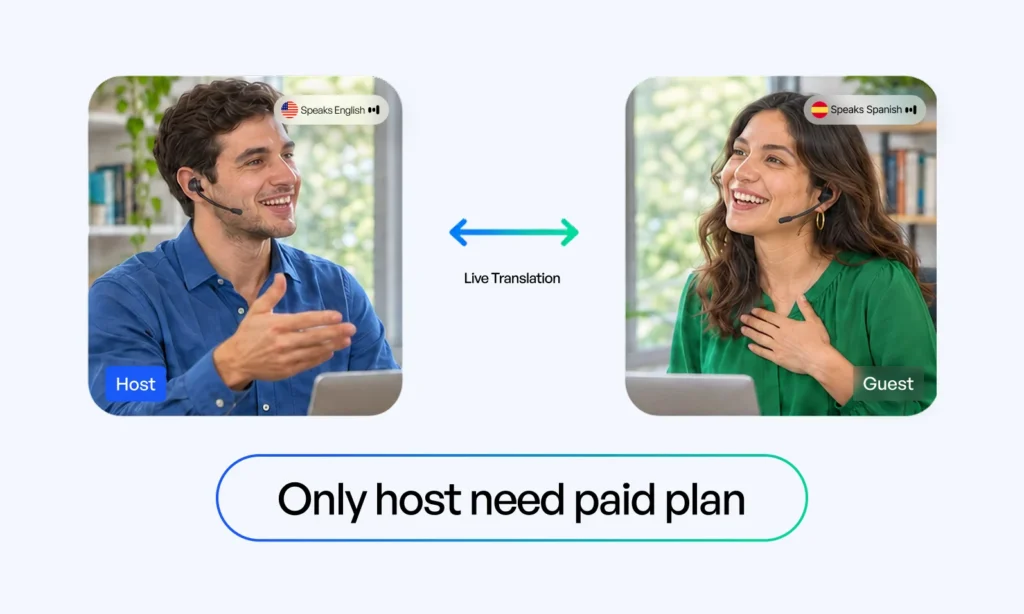
On Pro, Business, Scale and Enterprise, only the host pays. Everyone else in the meeting is covered by the host’s plan, so participants do not need a plan of their own. For a one-off meeting, a $5 Language Pass gives you translation without a subscription.
Qordenate works in your browser and in the mobile app for iOS and Android. Your account, plan and settings are shared across both.
Who is Qordenate built for?
Participant A
Speaks: English Hears: English (Real-Time)Participant B
Speaks: Spanish Hears: Spanish (Real-Time)Supported browsers and devices
Qordenate runs in the browser with no installation required, on Google Chrome, Microsoft Edge, Safari, Mozilla Firefox and Opera. The mobile app is available for iOS and Android. Mobile and web access are included on every plan, including Basic.
| Capability | Web app | Mobile app |
|---|---|---|
| Host, schedule and join meetings | Yes | Yes |
| All multilingual AI features | Yes | Yes |
| Screen share, backgrounds, whiteboard, recording | Yes | Yes |
| Join a podcast | Yes | Yes |
| Host a podcast | Yes | No |
| Join a webinar | Yes | Yes |
| Create, host or buy a webinar | Yes | No |
How to Create Your Account?
Sign up with your email address
Verify your account with the one-time password sent to your email
Complete onboarding by setting up your account and AI preferences
Log in and access your dashboard
How to set your default language
Go to Settings → AI Preferences and select your preferred language. It determines how you hear other participants — Qordenate translates conversations into that language automatically. You can change it at any time, and the change applies from the next session you join.
Getting started with multilingual meetings
How to start a meeting instantly
On the web app
On the mobile app
How to schedule a meeting
Click Schedule Meeting.
Set the date and time.
An email will be shared with the participants, after the meeting is scheduled.
How to invite participants who speak different languages
- Participants receive an email once the meeting is scheduled
- They open the Qordenate app, or join in a browser
- Each participant picks their language from the meeting’s languages when they join.
- Participants join using the meeting link or the room ID
You select the set of languages for the meeting; each participant chooses their own language from that set and can change it during the meeting. Translation runs in both directions, so an English speaker and a Spanish speaker each hear the other in their own language.
If you are on Pro, Business, Scale or Enterprise, your participants do not need a plan of their own. Your plan covers the meeting.
How to invite someone who does not have an account
Share the meeting link. Anyone with the link can join as a guest without signing up.
If you are on Pro, Business, Scale or Enterprise, guests are covered by your plan and hear the meeting translated into their language. If you are using a Language Pass or Basic, guests get basic meeting features only. Guests cannot record or claim the free AI trial.
Quick-start: your first meeting in under 30 seconds
Quick-Start Guide
- 1
Log in
- 2
Select New Meeting
- 3
Choose your meeting’s languages
- 4
Select Start Meeting, then copy and share your meeting link
- 5
Begin speaking and enable the features included in your plan
What is the Basic (free) plan?
Basic Plan Upgrades
Sign up during the current offer period, on mobile or web, and your Basic account keeps these limits for life.
1 user
Unlimited meetings
Up to 6 hours per meeting
Up to 100 participants
2 languages per meeting
Local recording
Multilingual chat and AI collaborative whiteboard
Multilingual AI Features
Plus a one-time 15-minute trial session giving you full access to test advanced real-time translation tools:
Post-Trial Options: Once the trial is used, you can keep using Basic for meetings, buy a $5 Language Pass for a one-off multilingual meeting, or upgrade to a paid plan.
Standard Basic Limits: Outside the offer, the standard Basic plan is 50 participants and 50 minutes per meeting. Full conditions are on Billing and Pricing Plans .
The offer is live for a limited time and no closing date has been announced. Full conditions are on Billing and Pricing Plans.
Once the one-time AI trial is used, you can continue using Qordenate on Basic without the multilingual AI features, or upgrade to a paid plan.
Getting started with podcasts
Podcasts are hosted from the web app. On mobile you can join a podcast you have been invited to.
What a Qordenate podcast includes
- Branding set by the host — logo, placement, colour, font, name and designation
- Host-controlled recording
- Live chat during the session
- Maximum 3 people including the host
Podcast sessions run in the participants’ natural language, without real-time translation. The multilingual podcast experience is coming soon.
Podcast Studio is included in the Business and Enterprise plans.
How to host a podcast (web app)
Podcast Production
- 1
Select New Podcast from your dashboard, or Schedule Podcast to set it in advance
- 2
Allow microphone and camera access
- 3
Add your branding details
- 4
Invite guests by sharing the link
- 5
Record when ready
How to join a podcast
Podcast Access
- 1
The host shares the podcast link with you
- 2
Open the link
- 3
Allow microphone and camera access
- 4
Join the session
Getting started with webinars
Webinars are booked and paid for per event on the web app, with no subscription. On mobile you can join a webinar you have registered for.
What a Qordenate webinar includes
- 100 to 300 attendees
- Up to 6 languages, chosen by the host from the 33+ languages Qordenate supports
- Duration from 1 to 4 hours
- Pay per event, from an introductory $29 for 1 hour, 100 attendees and up to 6 languages
- Live voice translation, webinar recording, multilingual live Q&A, post-event analytics and point-to-point encryption
How to create a webinar (web app)
Webinar Setup
- 1
Select Create Webinar
- 2
Set the date, time and duration
- 3
Select up to 6 languages and your participant count
- 4
Pay the quoted price
- 5
Share the registration form with attendees
How to join a webinar
Webinar Access
- 1
The host sends you a webinar registration form
- 2
Complete registration and choose your preferred language from the set the host selected
- 3
Select Join Webinar and paste the webinar link
- 4
Confirm your preferred language and join
Frequently asked questions
How many languages does Qordenate support? More than 33 languages in voice and captions. How many can run in one meeting depends on the host’s plan, from 2 on Basic to 9 on Scale and the Language Pass.
Do my participants need to pay? Not if you are on Pro, Business, Scale or Enterprise. Your plan covers everyone in the meeting.
Do I need to install anything? No. Qordenate runs in the browser. The mobile app is optional and available for iOS and Android.
Is the free plan really free? Yes. The Basic plan costs nothing and includes a one-time 15-minute trial of the multilingual AI features.
Can I host a webinar from my phone? No. Webinars must be created, configured and paid for on the web app. You can join one from your phone.
Can I record a podcast in more than one language? Not yet. Podcast sessions run in the participants’ natural language; the multilingual podcast experience is coming soon.